


 Homepage
 Forum
Forum Drivers
 HMM-Manuals
 MTM
MTM Feed
Feed

Lenovo X220 und T520: BIOS-Update mit USB-Stick durchführen
It is in German, so I made an English translation below.
BTW, this applies to many more older and newer models!
-----------------------------------------------------------------------
If you run Windows 10 on older Thinkpads (such as T520/X220) and want to update the BIOS under W10, this causes a Bluescreen.
Reason: these Lenovo BIOS-updates are NOT suited for Windows 10, but run on W7 and W8/W8.1.
If you want to use the also available Lenovo bootable ISOs, this requires a CD-drive, which not all machines have.
And who is still using CD-blanks nowadays?
A USB-stick is much better suited and can be re-used for many other things!
However, the ISO-files offered by Lenovo are NOT compatible with USB-sticks!
But fear not: using a Perl-script (Geteltorito), it can convert the Lenovo-ISO into a bootable Image, which can be used with a USB-stick.
Download it from here.
Most Linux-distributions natively support running Perl-scripts.
But Perl is also available for Windows.
Standard Perl version available here.
However, for this occasion we use the Strawberry Perl version, available in 32- and 64-bit.
After Installation of Strawberry Perl the Windows-machine must be rebooted to activate the new variables.
That way you can call Perl directly from a Command line, without having to enter the full path.
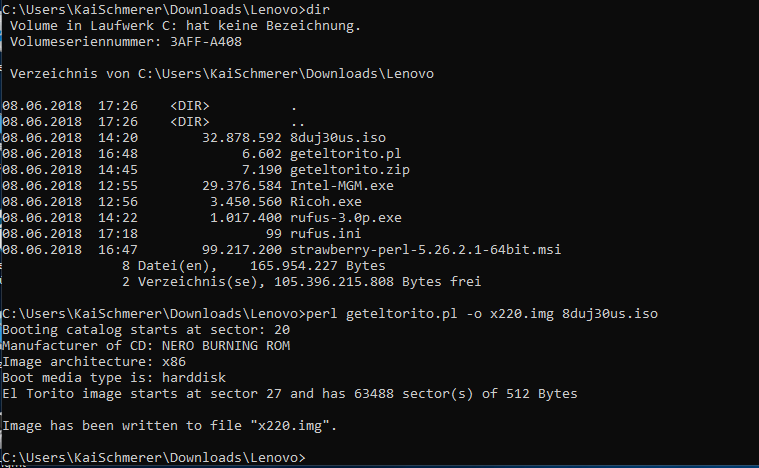
To convert the Lenovo-BIOS-ISO under Windows, run CMD and enter the following (sample-names) command:
perl geteltorito.pl -o x220.img 8duj30us.iso
where x220.img is the newly made Image-file, which can now be used with a USB-tool like Rufus to make a bootable USB-stick.
where 8duj30us.iso is the actual bootable BIOS-Version for the Lenovo-Laptop X220.
(Replace the above .img and .iso texts with your own file names.)
Under Linux the command is:
geteltorito -o bios_x22.img 8duj30us.iso

With the new BIOS-Image you now make a USB-stick (64MB or more) and boot from it.
To flash the BIOS, Lenovo asks several questions, which must be confirmed with YES („Y“ on US/UK, „Z“ on German, „W“ on French) keyboards.
The flashing does not show a progress bar, but when finished it shows the following Information:
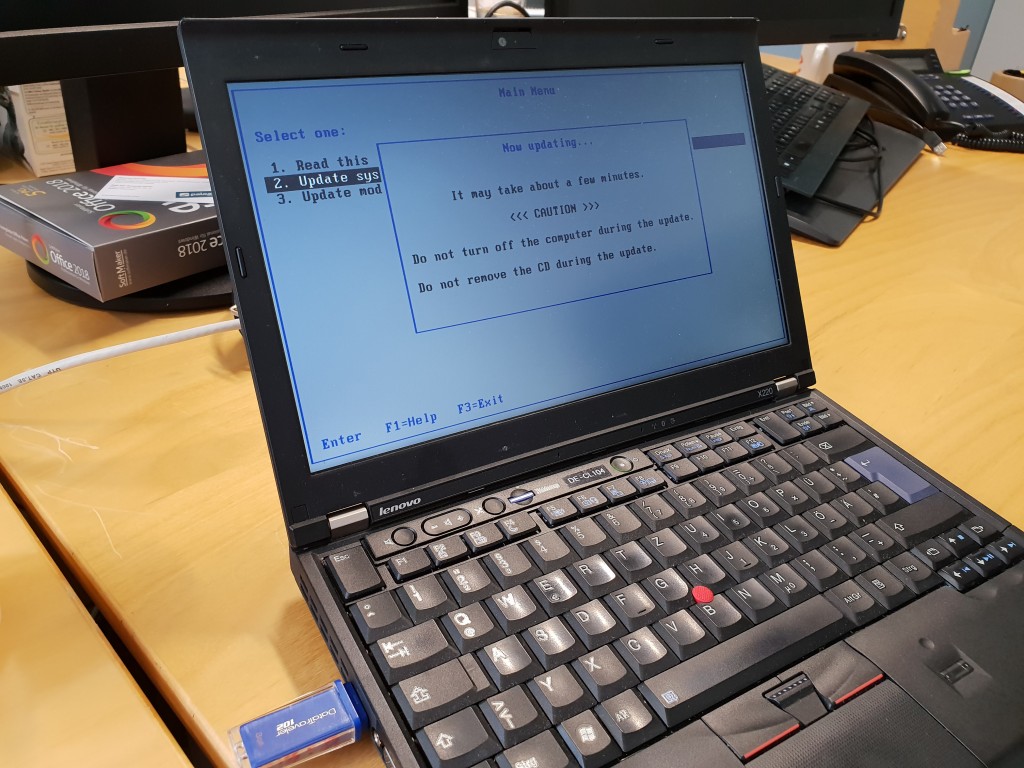
(When seeing CD, think USB-stick).

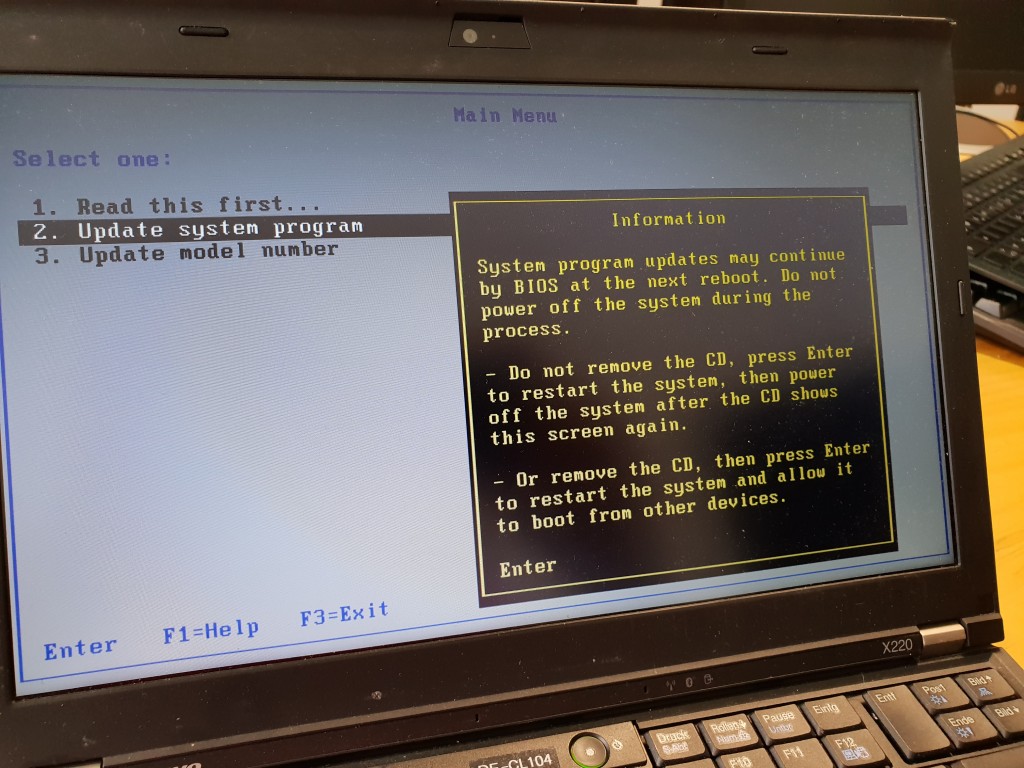
By pressing the Enter-key the PC is booting. The USB-stick remains in until the PC has started the Operating System.
Enjoy!

